Every window, not just the app. Turn on Choose windows too and, at Release to Switch, keep sliding: the app’s windows line up above the Dock. Let go on the one you want.
Made for MacBooks with a notch
The screen
you paid for.
ProMax Display lets full screen apps fill the whole screen, including the strip beside the notch that macOS leaves black.
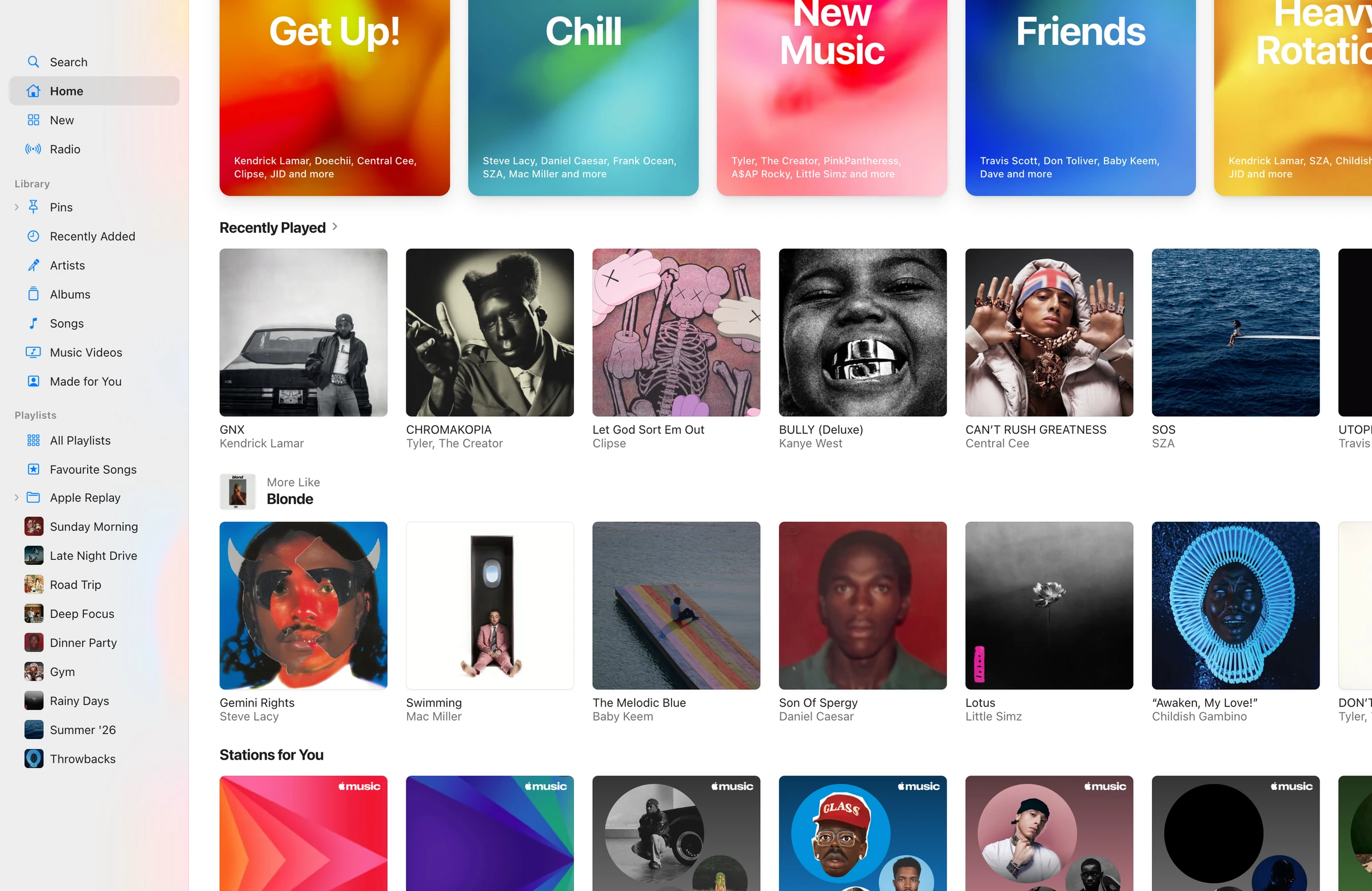
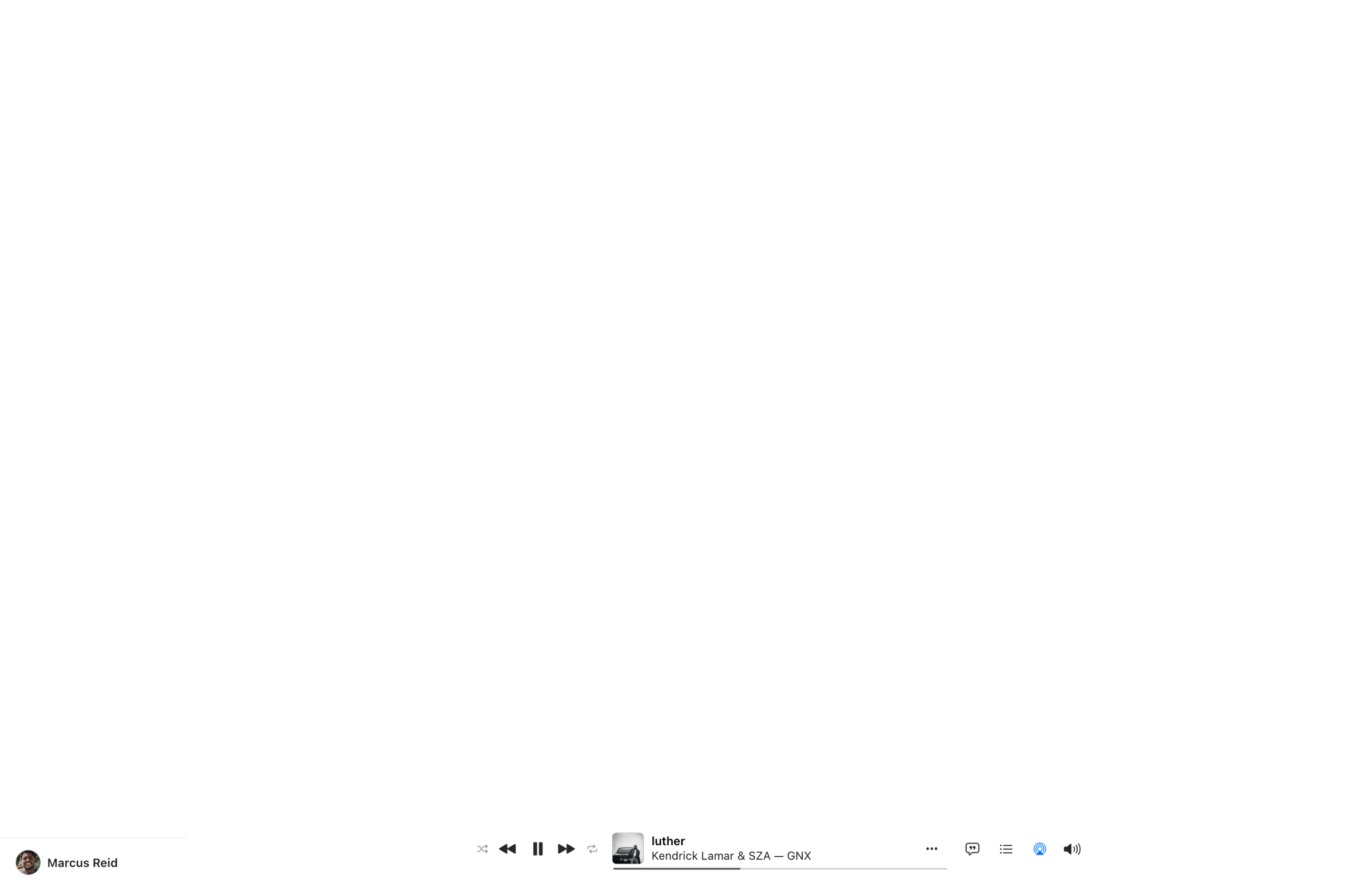
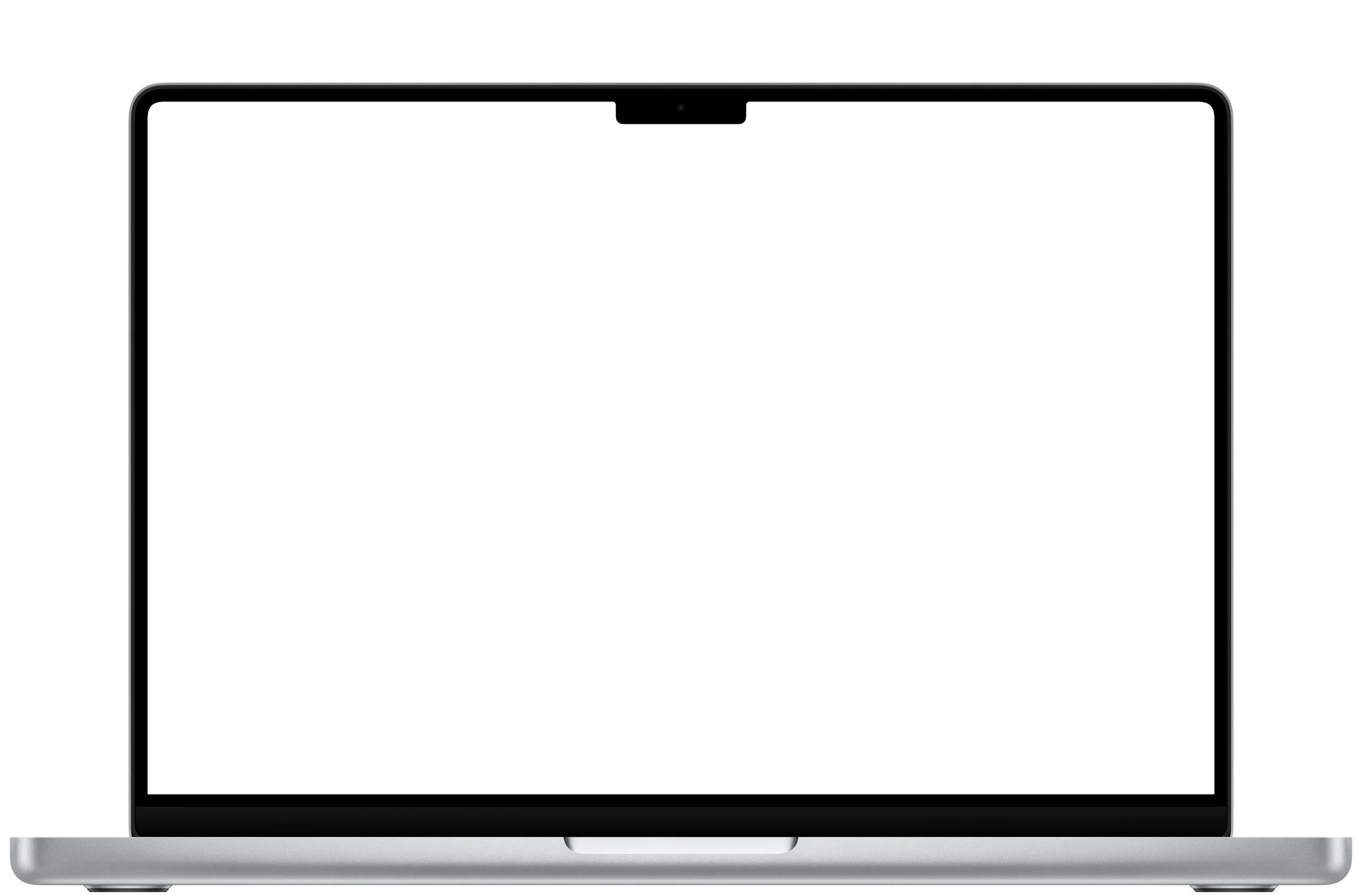
14.06″Full screen today
14.2″With ProMax Display. The whole screen.
Rear-view mirror
See what’s behind
See what’s behind
the notch.
Most of the time there’s nothing behind the notch you need. When there is, point at it. A live view grows out of the notch with your pointer in it, and clicks go straight through to the page. Move away and it tucks back in.
Trackpad gestures
Swipe in from
Swipe in from
the edges.
Two fingers in from the edge of the trackpad, and the Dock, the menu bar or Control Center follows them, the way things do on an iPhone. Only a swipe that starts at the very edge counts, so a scroll stays a scroll.
Up from the bottom for the Dock.
Swipe up again and slide, and each app lifts under your fingers with a light tap on the trackpad. Pull up and let go to switch to it. Your pointer never moves.
Down from the top left for the menu bar.
Swipe down again and slide along the menus. Each one opens under your fingers, and letting go chooses the item you’re on.
Down from the top right for Control Center.
Then slide sideways: the top half of the trackpad sets the brightness, the bottom half the volume. Swipe back up and it’s gone.
Pinch to fill
Video, edge
Video, edge
to edge.
Most videos are wider than a MacBook screen, so full screen leaves bars. Pinch out on the trackpad and the video fills the whole screen, notch row included. Pinch in to fit it again. The video’s own controls stay right where they are.
Works in QuickTime Player and apps that use Apple’s video player (with macOS in English, for now; not the TV app). In Safari, Chrome, Arc, Dia, Brave, Edge, Vivaldi, Chromium and Firefox, add the free ProMax Display extension, and the app shows you how. Fill one and every video after it fills by itself, on any site, until you pinch one back in.
Small things,
thought through.
Peek at the menu bar. Two fingers down from the top of the trackpad and the menu bar comes down, with no trip to the top of the screen. Leave it alone and it goes back up by itself.
Moves with your fingers. The Dock, menu bar and Control Center track every bit of the swipe, slow or fast. Change your mind and swipe back without lifting, and they go back with you. Let go and they finish at your speed, like macOS’s own gestures.
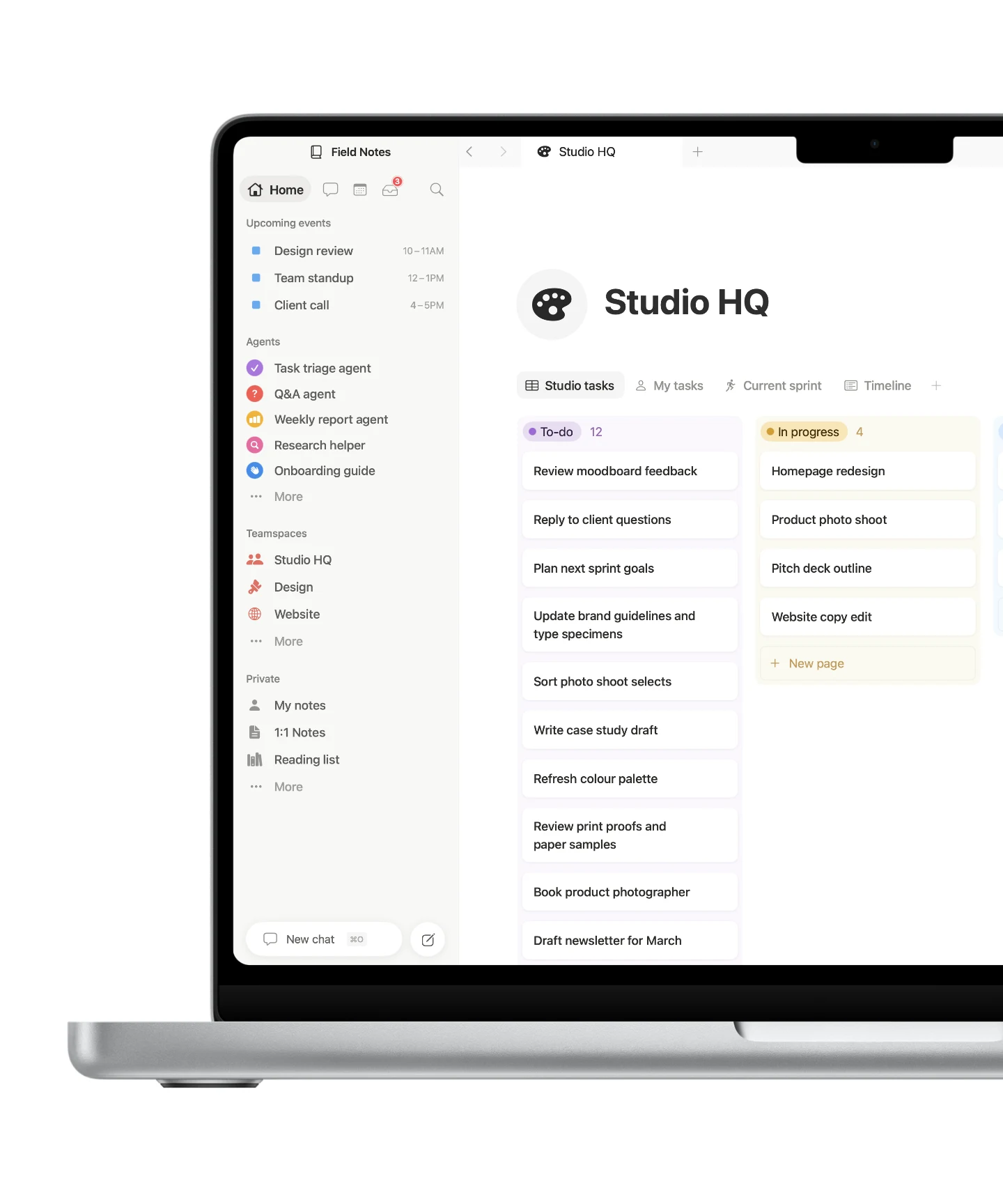
Rounded like the screen. Full screen apps keep the display’s rounded corners, even mid-swipe between Spaces. Round the bottom pair too, and the pointer follows the curve the way it stops at the edges.
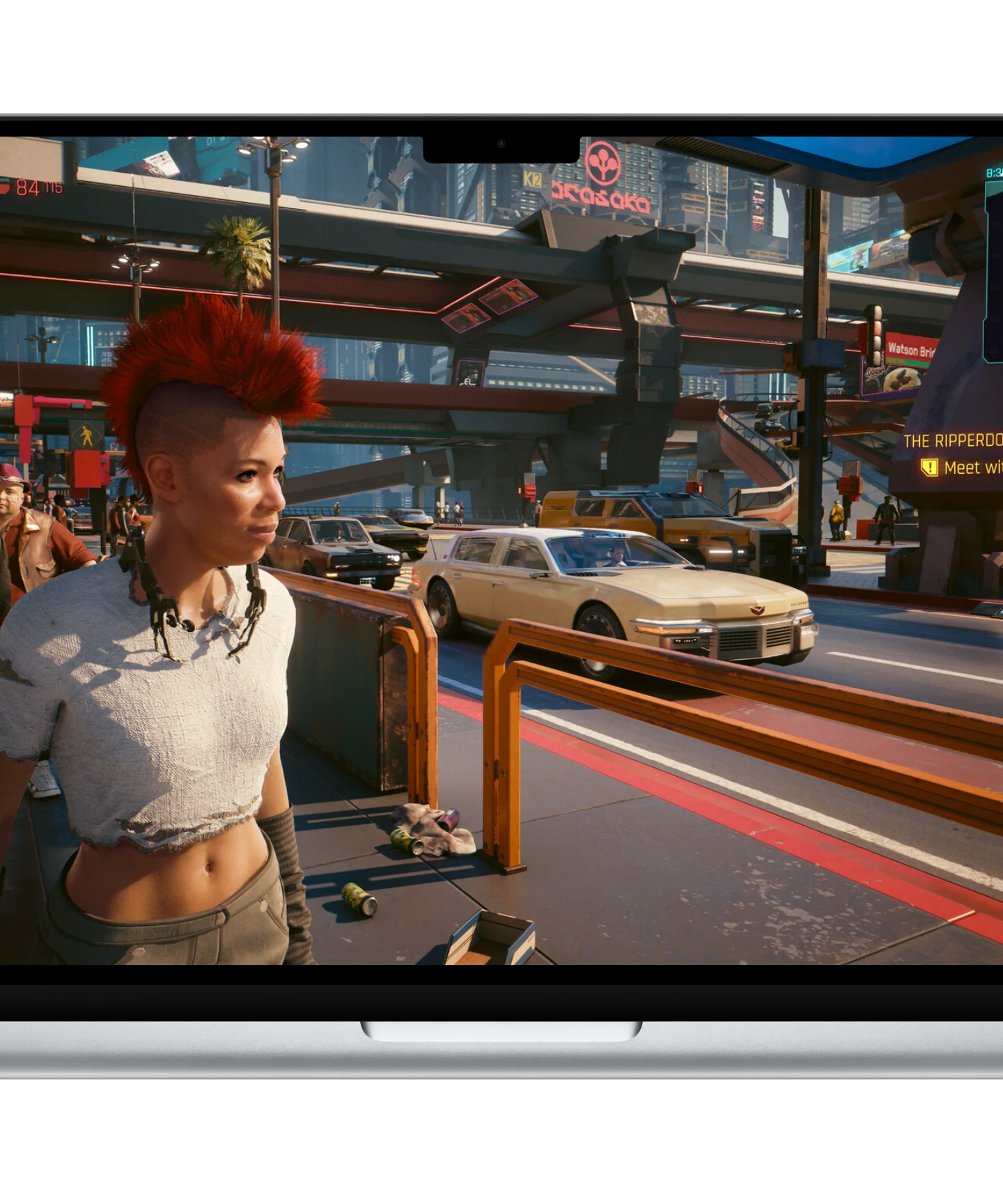
Works with every app. Safari, Xcode, Figma, Notes, games: after the one‑time setup, any app’s full screen uses the whole display, notch row included.
Only the parts you want. Filling the notch row, the mirror, the corners and the gestures each have their own switch. Excluded Apps leaves any app as it is.
Most of these come with the one-time setup, just below.
Native by design
Feels like macOS.
Because it is.
Built on macOS.
ProMax Display doesn’t redraw the Dock, the menu bar or Control Center. It brings out macOS’s own, so they look, feel and update exactly as Apple made them.
Set up once, guided.
Most of it works the moment you open it. For every app, it walks you through one restart into Recovery to turn part of SIP off. Gatekeeper and XProtect keep protecting your Mac.
Nothing new to learn.
Full screen works the way it always has: the green button, ⌃⌘F, swiping between Spaces, Mission Control. It just uses the whole screen now.

Lifetime licence
Pay once.
Get every update.
No subscription. No upgrade fees. Every feature and every future update is included, and ProMax Display checks for them by itself.
Frequently asked questions.
Requirements.
- Operating systemmacOS 26 or later
- MacA MacBook with a notch
- Apps with their own settingNo setup needed
- Every appSystem Integrity Protection partly off
- A one-time setup, done from Recovery. Learn how
Gestures, pinch to fill and rounded corners also work on Macs without a notch. Which Macs