Getting started
ProMax Display needs macOS 26 or later. Full screen past the notch, the rear-view mirror and the menu bar beside the notch need a MacBook with a notch. On a Mac without one, ProMax Display’s General page says so, and you get the trackpad gestures, pinch to fill video and rounded corners. Which Macs.
It’s one window with a sidebar of pages, like System Settings. There’s no menu bar icon: open ProMax Display like any app to change a setting, and its Dock icon shows while the window is open. When you first open it, a short welcome shows what works now and what the one-time setup unlocks.
- Download ProMax Display from the page you see after buying, or from your receipt email.
- Open the DMG, drag ProMax Display to Applications, and open it.
- Activate your licence: click Activate at the top of the sidebar. See Your licence.
The top of the General page says what ProMax Display gives your screen: on a 14″ MacBook Pro, 14.2″ instead of 14.06″, 3.5% more screen.
Unlock every app
To make every app fill the notch row, ProMax Display needs a one-time setup. It loads a small add-on into the Dock. The add-on is what lets full screen use the strip beside the notch. Nothing is loaded into your apps.
- System Integrity Protection, partly off. Done once, from Recovery, by following the installation guide. ProMax Display needs filesystem protections and debugging restrictions off, and checks both for you.
- Install the add-on. Click Install on the Unlock Every App page and allow ProMax Display in System Settings General Login Items & Extensions.
The installation guide walks through both, step by step. Once it’s done, the Unlock Every App page leaves the sidebar and Apps becomes Excluded Apps, since every app is covered. Apps that were already open need a quit and reopen.
FileVault, the system volume and your apps are untouched.
Apps with their own setting
Without the setup, or before you do it: some apps have their own setting that lets full screen reach the notch row. The Apps page lists the ones installed on your Mac, with a switch for each.
- Switched on for you: Visual Studio Code, Cursor, Zed, Ghostty, kitty, mpv and MacVim. Switch one on from the Apps page and ProMax Display shows exactly which setting it will change, and in which file, before it changes it. Nothing else in the file changes, and switching it off puts that setting back as it was. If you have changed it yourself since, your value stays.
- Set in the app itself: iTerm2, WezTerm, Alacritty and Neovide keep the setting somewhere ProMax Display doesn’t edit. Click How To for the steps.
Each row also says how to go full screen in that app. In most it’s the app’s own full screen command (for example View Full Screen, or Control‑Command‑F). Some apps need a restart to pick up the change, and the Apps page says so when they do.
VS Code and Cursor keep their title bar in full screen, so their command centre sits right behind the notch. Once every app is unlocked, the rear-view mirror helps there.
Games
Games built on SDL (a library many games use) can fill the notch row too. On the Apps page, click Open a Game and pick the game. It opens with full screen reaching the notch row. Once every app is unlocked, games work like any other app, and Open a Game goes away along with the Apps page.
For Steam games, copy the launch option from the Apps page into the game’s Properties Launch Options in Steam:
SDL_VIDEO_MAC_FULLSCREEN_SPACES=0 %command%Security
Unlocking every app means turning part of System Integrity Protection off. That’s a real trade-off, so here it is plainly.
What System Integrity Protection partly off trades away
System Integrity Protection (SIP) is one of macOS’s defences. It stops any software, even with your admin password, from changing protected system files or attaching to other processes, including system ones like the Dock. ProMax Display needs two of its parts off: filesystem protections and debugging restrictions.
- With those off, software running on your Mac could change protected system files or interfere with other processes, which SIP would normally block. That includes malware, if any ever got onto your Mac.
- SIP is one layer among several. Gatekeeper, XProtect, notarisation, FileVault and macOS asking for your password all keep working.
- So: keep macOS up to date, run software you trust, and keep backups.
- You can turn SIP back on at any time to undo it. See Uninstall.
What stays as it is
- FileVault stays on. No need to turn it off at any point.
- The system volume isn’t changed.
- Your apps aren’t changed, and nothing is loaded into them. The add-on lives in the Dock.
What the setup installs
- A helper, which runs as root once you allow it in Login Items. It copies the add-on into a folder only root can change, checks it is signed by us before it goes into the Dock, and loads it again whenever the Dock restarts. It does nothing else.
- The add-on, inside the Dock. It asks the window server to let full screen use the notch row, and handles the menu bar, the corners and the gestures that follow your fingers. It doesn’t touch your files. Its commands come over a private channel that accepts only ProMax Display, checked by its signature, and anything it’s sent is checked before it’s used.
- A safety net, a small background task in your user account. If ProMax Display can’t keep full screen working (SIP turned back on, the helper switched off, the app deleted without Uninstall), it puts full screen back to normal.
If the Dock ever quits twice within five minutes with the add-on in it, the helper stops loading the add-on and full screen goes back to normal, below the notch. See Troubleshooting.
What the app asks for
| Permission | What it’s for |
|---|---|
| Login Items | ProMax Display’s helper, which adds the add-on to the Dock and keeps it there after restarts and updates. Only needed to unlock every app. |
| Screen Recording | The rear-view mirror, to show the part of the screen behind the notch, and the window previews if you turn on Choose windows too. It only looks while one of them is showing. Nothing is recorded, saved or sent anywhere. |
| Accessibility | The trackpad gestures: opening the Dock, menu bar and Control Center, stopping the page under the pointer from scrolling as you swipe, reading the Dock’s items for the app switcher, an app’s menus for choosing menu items, and an app’s windows for the window switcher. Also the mirror (whether a button of the full screen app is behind the notch), pinch to fill (pressing the video player’s zoom button), and the pointer at the top edge inside the notch and at rounded corners. |
There’s no Input Monitoring: the gestures read the trackpad’s touches directly, which needs no permission. Without Accessibility they don’t open anything.
If the trade-off doesn’t suit your Mac
If you’d rather not change SIP, or your Mac is managed by an employer whose rules don’t allow it, use ProMax Display without the setup. macOS gives apps no other way to let every app’s full screen use the strip beside the notch.
Using ProMax Display
Turning it on and off
Once every app is unlocked, Fill the notch row on the General page turns it on or off for every app. On: full screen fills the notch row in every app, except the ones you exclude. Off: full screen works as normal, below the notch.
Excluded Apps
To keep an app on macOS’s normal full screen, below the notch, add it on the Excluded Apps page: click Choose Apps and tick it in the list. Click the minus button next to an app to stop excluding it. Apps read this when they open, so quit and reopen an app after changing it.
Rear-view mirror
With an app in full screen, point into the notch and a live mirror grows out of it, just below the notch, showing what’s behind it. Your pointer shows inside it while it’s behind the notch, so you can aim at what’s there. Move away in any direction and it closes at once, so the page just below the notch works normally.
Switch it on or off with Show the mirror on the General page. It needs Screen Recording, and the page has an Allow button that takes you to the right place in System Settings. It works once every app is unlocked.
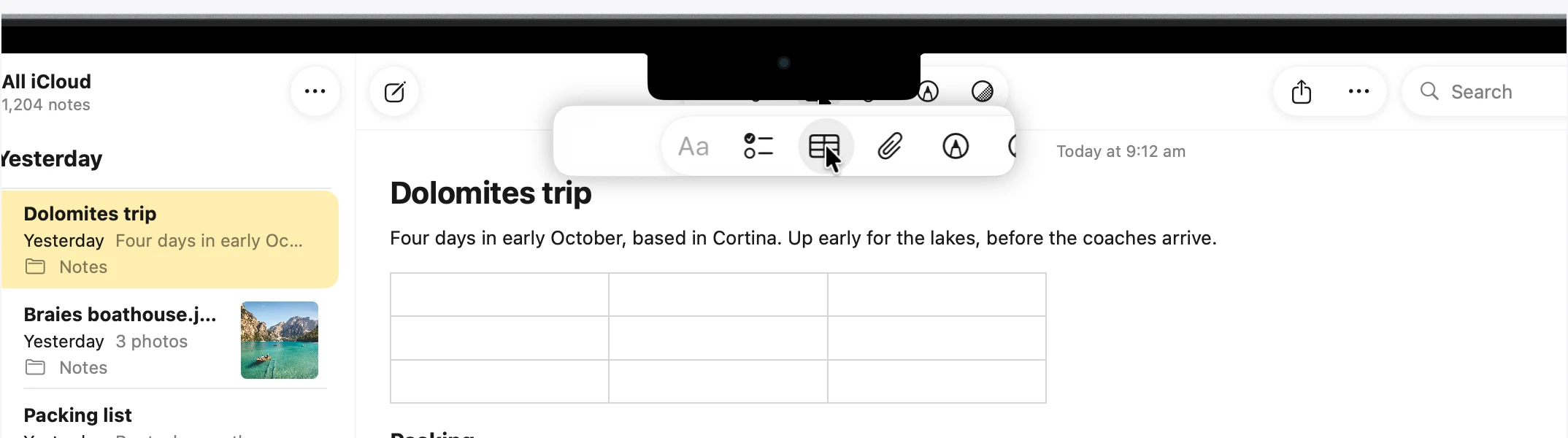
Behind the notch
The part of a full screen app behind the notch still works: it takes hovers and clicks as normal, and the mirror shows you what you’re pointing at. If an app’s own toolbar sits behind the notch, its buttons and fields work as normal.
Menu bar and Dock
- Menu bar: move the pointer to the top edge beside the notch and the menu bar comes down, as it always has. Touching the top edge inside the notch doesn’t bring it down, so heading for the mirror never drops the menu bar on you. Or swipe it down from the trackpad: see Trackpad gestures.
- Dock: at its edge, as usual.
- Overlays: when Spotlight or another overlay is open, the mirror stays out of its way.
Other notch apps
ProMax Display needs the strip beside the notch to itself. Other notch apps, such as Vorssaint and Ocelli, pop open over your full screen app and get in the way of the rear-view mirror. When one is running, the General page lists it under Apps to quit, with a Quit button (and Quit All if there are several). Apps that show window previews over the Dock, such as DockDoor, are listed too: their previews cover the Dock switcher’s. If an app won’t quit from there, quit it from its own menu bar icon.
Corners
Your screen’s top corners are rounded; a full screen app’s are square, which shows as you swipe between full screen apps. Under Full-screen corners on the General page:
- Match the display’s corners keeps the display’s rounded top corners on full screen apps, including while you swipe between them. On by default.
- Round the bottom corners too gives the bottom corners the same curve, always, so all four match. They stay put while you swipe between Spaces. Push the pointer into a corner and its tip slides round the curve, with the rest of it hidden past the curve, as it is at a screen edge. The pointer part needs Accessibility, allowed on the Gestures page; without it the corners are still rounded and the pointer moves as usual.
Corners work once every app is unlocked. On a Mac without a notch they work straight away, as one switch, Round the corners, that rounds all four.
General
- Fill the notch row. The main switch. See Turning it on and off.
- Open at login.
- Automatically hide and show the Dock. The same setting as in System Settings Desktop & Dock, here so you can change it without leaving. ProMax Display turns it on once you activate it; switch it off here if you’d rather, and Uninstall puts back what you had.
The rear-view mirror and the corners are on the General page too. Updates, removing the add-on and uninstalling are on the About page.
Trackpad gestures
Like an iPhone: start with two fingers just off the edge of the trackpad and swipe a short way in.
| Swipe | Opens |
|---|---|
| Two fingers up from the bottom edge | The Dock |
| Two fingers down from the top edge, left side | The menu bar |
| Two fingers down from the top edge, right side | Control Center |
- With the one-time setup, they follow your fingers. Without it they open in one go. Swipe back the way you came, without lifting, and it closes again. Forward again reopens it, so you can take a quick peek.
- To close, swipe back out towards the edge it came from.
- A Dock you swiped up goes away like the Dock does: if the pointer doesn’t go to it within a couple of seconds, or once the pointer has been on it and moves away.
- Scrolling isn’t affected. A swipe that isn’t one of these is a normal scroll, and the page under the pointer doesn’t scroll while you make one.
On the Gestures page, the trackpad picture shows your fingers live, with the three edge areas, so you can practise. Under it, Try it is a checklist of every gesture that ticks each one off as you do it. The gestures need Accessibility, and the page has an Allow button.
Switch apps from the Dock
With the Dock up, swipe up again, then slide left or right: a highlight moves across the Dock with each app’s name above it. Your pointer never moves. The Dock gestures are made for a Dock at the bottom of the screen, where it is unless you’ve moved it.
- Open or switch: pull your fingers up a little. The label says Release to Switch for an open app, or Release to Open for one that isn’t. Let go and it opens.
- Quit (a setting, off at first: turn on Pull down to quit in Gestures): pull your fingers down a little instead. The label says Release to Quit. Let go and the app quits, the same as choosing Quit from its Dock menu, so it can still ask you to save. Works for open apps, not Finder.
- Change your mind: move back the other way and you’re choosing again. Let go without pulling up or down and nothing happens.
On the Gestures page, under Dock:
- Switch apps turns the switcher on or off.
- Running apps only steps through the apps that are open, skipping the rest of the Dock.
- Choose windows too (off unless you turn it on): at Release to Switch, pull up a little further, then slide to choose one of that app’s windows, shown as previews. Let go and that window comes to the front. Only for apps with more than one window, and only the windows in the Space you’re in (macOS doesn’t list the others). The previews need Screen Recording; without it you choose by the windows’ names.
- Pull down to quit turns on quitting, above.
Choose menu items
With the menu bar down, swipe down again and the menu under your fingers opens. Slide sideways along the menu bar for the others. Move down into a menu and through its items, right into a submenu and left to come back out. Lift your fingers on an item to choose it. Let go anywhere else and the menu stays open for the pointer. These are the app’s own menus, and your pointer never moves. Turn it on or off with Choose menu items on the Gestures page.
Brightness and volume
With Control Center open from a swipe, slide sideways: with your fingers on the top half of the trackpad it sets the brightness, on the bottom half the volume. Turn it on or off with Brightness and volume on the Gestures page.
Haptic feedback
The trackpad gives a light tap as you move between apps in the Dock and items in a menu, and when Release to appears. Switch it off with Haptic feedback on the Gestures page.
Pinch to fill video
Most videos are wider than a MacBook screen, so in full screen they leave black bars, and stop below the notch. With a video full screen, pinch out on the trackpad and it fills the whole screen, edge to edge and notch row included, cropping a little off the sides. In a browser, a film with black bars built into its picture fills past those too, unless the site protects its video from copying. Pinch in to fit it again. The video’s own controls stay where they are.
In a browser, your choice is remembered: after you pinch to fill, the next full screen video fills by itself until you pinch in. Turn it on or off with Pinch to fill video on the Gestures page.
| Where | What it needs |
|---|---|
| QuickTime Player, and apps that use Apple’s video player | Nothing, it’s built in. For now these need macOS in English; in other languages their own pinch works as before. Not the TV app: its player has no fill setting to press |
| Safari | The ProMax Display extension, which comes with the app: click Turn On next to Safari on the Gestures page, then tick it in Safari’s settings |
| Chrome, Arc, Dia, Brave, Edge, Vivaldi, Chromium | The ProMax Display extension from the Chrome Web Store: click Get Extension next to the browser on the Gestures page |
| Firefox | The ProMax Display add-on from Firefox Add-ons: click Get Extension next to Firefox |
The Gestures page lists the browsers on your Mac and shows which have the extension. In browsers it works on sites that play video in the browser’s standard player, such as YouTube and Vimeo. The extensions are free, and only work while ProMax Display is open.
Why the app and the extension together: a browser’s own full screen stops below the notch, so an extension on its own could only zoom the video within that smaller picture. ProMax Display takes full screen past the notch to the top edge, and the extension zooms the video in the page as your fingers move.
Privacy: the extension only looks for the video that’s full screen on a page, and at a tiny copy of its picture to find black bars built into a film (not kept or sent). It doesn’t read the pages you visit or your browsing, collects no data, and talks only to the ProMax Display app on your Mac. It tells the app’s log which site the video is on, and that log stays on your Mac. See Privacy.
Updates
ProMax Display checks for updates automatically. To check now, choose ProMax Display Check for Updates, or click Check for Updates on the About page. Automatic checks can be switched off there too. Every release is listed on What’s New.
Each update installs with a click. If one changes the helper or the add-on, the General page shows Update ready with a Finish Update button. That takes a few seconds. If the add-on itself changed, the Dock restarts for a moment, and your windows stay where they are. macOS may ask you to allow ProMax Display in Login Items again.
You never need to go back to Recovery for an update.
Your licence
- Activate: click Activate at the top of the sidebar and paste the key from your receipt email. Pasting the whole key activates straight away.
- Before it’s activated, you can look around and do the setup, but nothing switches on.
- Moving to a new Mac? Click Deactivate This Mac on the Licence page first, to free the activation. Then activate on the new Mac with the same key.
- Offline is fine. ProMax Display checks the licence when it opens and once a day after that. Being offline never switches it off; only a refund or a deactivation does.
Each licence activates one Mac.
Troubleshooting
An app still stops below the notch
- Quit and reopen it. Apps read the setting when they open.
- Check it isn’t on the Excluded Apps page.
- Check Fill the notch row is on, on the General page, and that the licence is activated.
- For apps on the Apps page, use the full screen command that row describes. Some apps need a restart after the setting changes.
Step 1 says "Partly off, not enough"
One of the two parts ProMax Display needs (filesystem protections, debugging restrictions) is still on. Go back to Recovery and run the command from the installation guide again.
Step 2 is stuck on "Waiting for the Dock"
Check ProMax Display is switched on in System Settings General Login Items & Extensions. The page checks again by itself every couple of seconds.
Something pops open over the notch
That’s usually another notch app. Quit it from the General page. See Other notch apps.
The mirror doesn’t show
Check Show the mirror is on and Screen Recording is allowed, both on the General page. It only shows in a full screen app that uses the strip beside the notch, while the pointer is behind the notch.
Gestures don’t open anything
Allow Accessibility on the Gestures page, and check Trackpad gestures is on there. Gestures also wait for the licence to be activated.
The menu bar comes down from inside the notch
Allow Accessibility on the Gestures page. ProMax Display needs it to stop the top edge inside the notch from bringing the menu bar down, and it starts working a few seconds after you allow it.
General says Add-on turned off
If the Dock quits unexpectedly twice within a few minutes with the add-on in it, ProMax Display stops loading the add-on and full screen goes back to normal, below the notch. It comes back by itself with the next update, or click Turn Back On there. If it keeps happening, email us (below) with your Mac and macOS version.
General says The add-on needs restarting
macOS stops the helper when ProMax Display is installed again over an earlier copy. Click Restart Add-on there.
Gestures says the switcher’s label needs an update
A macOS update changed the Dock in a way this version of ProMax Display hasn’t been checked against. Full screen and the gestures keep working; the app switcher shows its own label above the Dock instead of the Dock’s. An update to ProMax Display brings the Dock’s look back.
Uninstall
On the About page, click Uninstall next to Uninstall ProMax Display. It puts back everything ProMax Display changed:
- Every app setting it switched on goes back as it was (unless you’ve changed it yourself since), and full screen goes back to normal. Apps that were open keep the old full screen until you quit and reopen them.
- The Dock’s automatic hiding and the menu bar’s full screen setting go back to what you had.
- Your licence is freed, so you can use it on another Mac. If it can’t reach the licence server, it tells you how to free it.
- The add-on and its helper are removed, and the Dock restarts once.
- Its settings and files are deleted, and the app moves to the Bin if it’s in your Applications folder.
Two things are left to you, and neither does anything once the app has gone: remove the ProMax Display extension from any browser you added it to, and remove ProMax Display from Accessibility and Screen & System Audio Recording in System Settings Privacy & Security.
Then, if you like, turn System Integrity Protection back on from Recovery. Apple’s guide to enabling System Integrity Protection has the steps.
If you dragged it to the Bin instead, the safety net puts full screen and the Dock’s automatic hiding back within a few minutes, then removes itself. Apps that were open need a quit and reopen. The app settings it switched on, the menu bar setting and your licence’s activation stay as they were, so Uninstall is still the better way: open ProMax Display once more (from the Bin, or download it again) and click Uninstall on the About page.
Privacy
The app has no analytics, tracking or crash reporting. It only goes online to check your licence with Lemon Squeezy and to check for updates. The rear-view mirror shows the screen live and records nothing. The browser extensions only look for the video that’s full screen on a page, collect nothing, and talk only to the app on your Mac. The full details are in the Privacy Policy.
Refunds
Every licence comes with a 14-day refund, and you don’t need to give a reason. Email [email protected] with your order number. A refund deactivates the licence, and ProMax Display switches itself off the next time it checks, within a day if your Mac is online.
Get help
Email [email protected]. Say which Mac you have, your macOS version, and what you see. A screenshot helps.