Before you start
Two steps: install the app, then a one-time setup that lets every app fill the notch row. The setup turns System Integrity Protection partly off from Recovery, then allows ProMax Display’s helper in Login Items. It takes one trip into Recovery and back, and you only do it once.
Setup relaxes one of macOS’s defences, so read what it trades away first. If you’d rather not change System Integrity Protection, apps with their own notch setting (VS Code, Cursor, Zed, Ghostty, kitty, mpv, MacVim and a few more) and SDL games still work, and ProMax Display switches most of those on for you.
You’ll need a MacBook with a notch, macOS 26 or later, and an admin password. On a Mac without a notch there’s no setup to do: the gestures, pinch to fill and rounded corners work straight away.
Install the app
- Download ProMax Display using the link on the page you see after buying. It’s also in your receipt email.
- Open the DMG and drag ProMax Display to Applications, then open it from there.
- Follow the welcome. It shows what works now and what the one-time setup unlocks. You can see it again any time from ProMax Display Show Welcome.
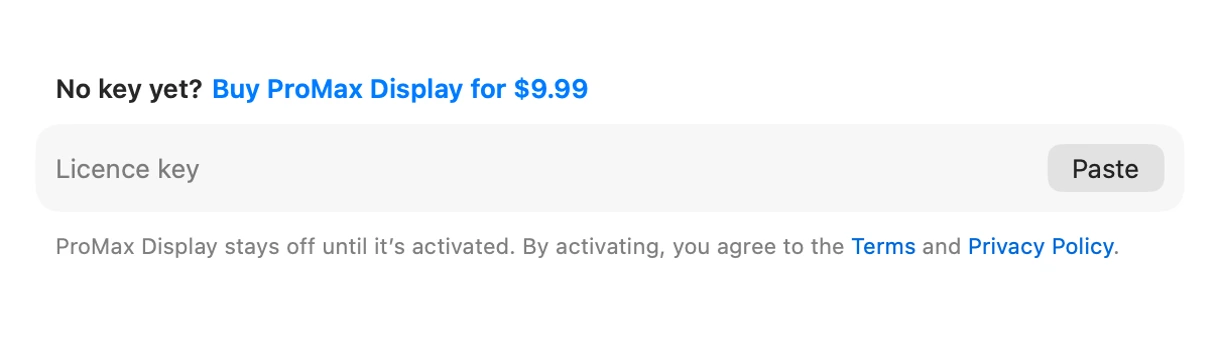
- Activate your licence. The welcome’s last page asks for it. If you skipped it, click Activate at the top of the sidebar. Paste the key from your receipt email. Pasting the whole key activates straight away. Until it’s activated you can look around and do the setup, but nothing switches on.
Part 1: Recovery
This part turns System Integrity Protection partly off. It happens in Recovery, a built-in part of macOS. It looks different from your desktop, but it’s still your Mac.
Keep this page open on your phone or another device, since your Mac restarts in the middle.
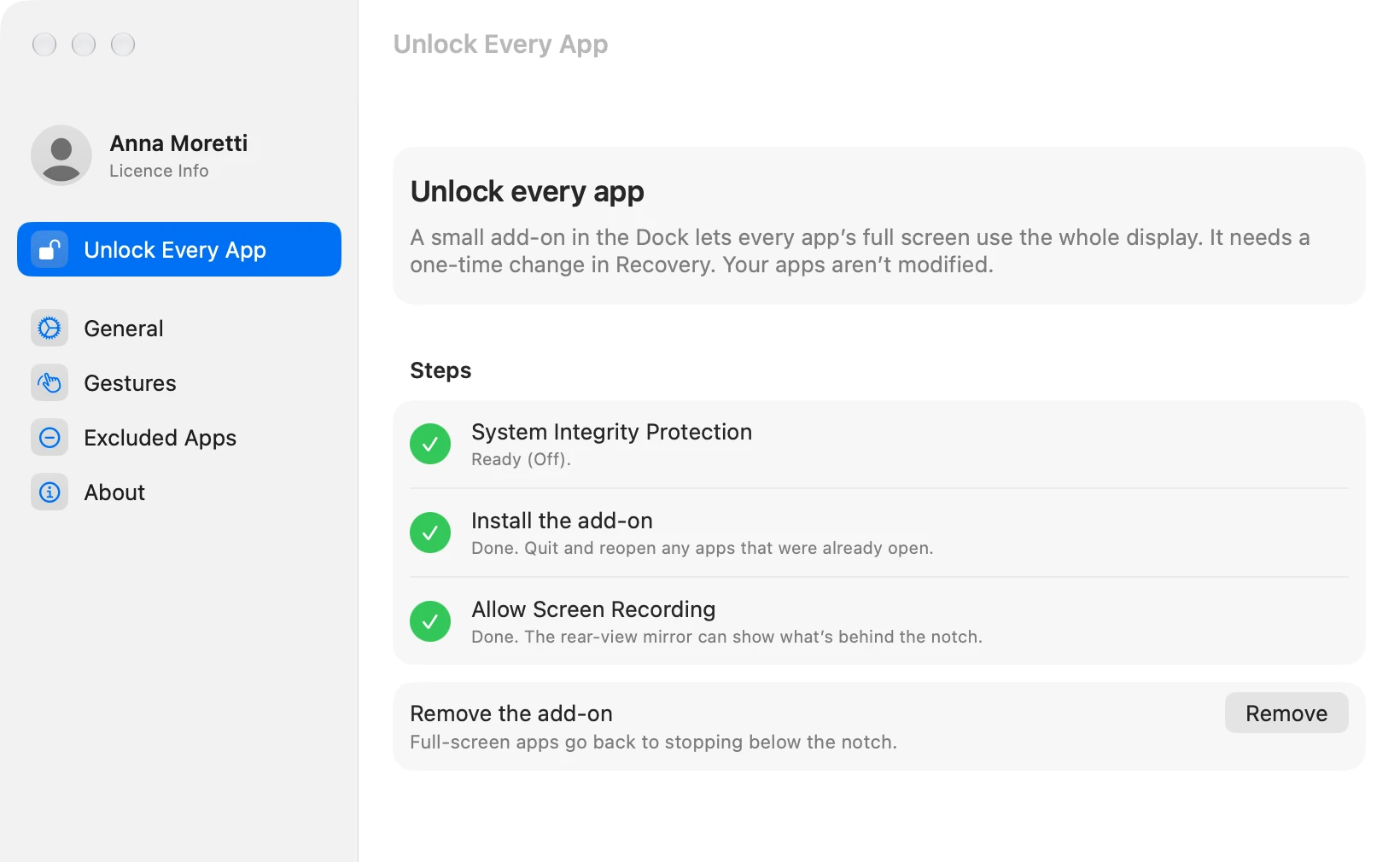
- Open ProMax Display and choose Unlock Every App in the sidebar. Step 1 shows where your Mac is now. Its Open Guide button shows these same steps in the app.
- Start up in Recovery and open Terminal. On a MacBook with a notch: shut down fully, then press and hold the power button until you see "Loading startup options", and let go. Click Options, then Continue. Sign in with your Mac’s admin account if asked. From the menu bar, choose Utilities Terminal.
- Type this command and press Return, then type y and your password if asked:
csrutil enable --without fs --without debug --without nvramTerminal warns that this is an unsupported configuration, and the y answers its question about booting unsigned operating systems. It then says “System Integrity Protection is on”. All of that is expected. - Restart. From the Apple menu, choose Restart, and you’re back in normal macOS.
Which parts does ProMax Display need off?
Two: filesystem protections and debugging restrictions. The app checks both for itself, so you don’t need to. Step 1 on the Unlock Every App page turns green with Ready once they’re off. If it says Partly off, not enough, one of the two is still on: go back to Recovery and run the command again.
Part 2: The add-on
Back on your normal desktop now.
- Open ProMax Display and go to Unlock Every App. Step 1 should say Ready. If it doesn’t, see Which parts does ProMax Display need off? above.
- Click Install next to step 2, Install the add-on.
- Allow it in Login Items. macOS asks once. Open System Settings General Login Items & Extensions and, under Allow in the Background, switch on ProMax Display. The app has an Open Login Items button that takes you straight there.
- Wait a moment. Step 2 goes from Waiting for the Dock to Done by itself.
- Allow Screen Recording, step 3, for the rear-view mirror (below). Click Allow, switch on ProMax Display in System Settings, then click Quit & Reopen. You can skip it and allow it later from the General page.
What is the add-on?
A small add-on that ProMax Display’s helper loads into the Dock. It lets full screen use the strip beside the notch. Nothing is loaded into your apps, and the system volume is untouched.
Finish
That’s the setup done. You won’t need Recovery again.
- Apps that were already open need a quit and reopen to fill the notch row.
- Make sure it’s on. On the General page, Fill the notch row turns it on and off for every app.
- Quit other notch apps. If you use one (Vorssaint, Ocelli and the like), the General page lists it with a Quit button. ProMax Display needs the strip beside the notch to itself.
- Allow the rear-view mirror. It’s on from the start and needs Screen Recording, from step 3. If you skipped that, the General page has an Allow button. The mirror only shows the part of the screen behind the notch, and nothing is saved or sent anywhere.
- Try the gestures. On the Gestures page, allow Accessibility when asked, then swipe in from the trackpad’s edges. Your fingers show up live on the page.
If anything looks off, the Support page has answers, or email [email protected].
Changed your mind?
On the About page, next to Remove the add-on, click Remove. Full screen apps go back to stopping below the notch, and your Excluded Apps list is cleared. You can then turn System Integrity Protection back on from Recovery whenever you like. See Uninstall.